Match the paper and scale
Open the downloaded PDF and select the printer. Choose the paper size used for the export, such as A4 or Letter, and confirm its orientation. Select actual size or 100 percent rather than an automatic fit option. Adobe documents actual size as printing without scaling; parts outside the printable paper area can be cropped. This is why an appropriate margin still matters.
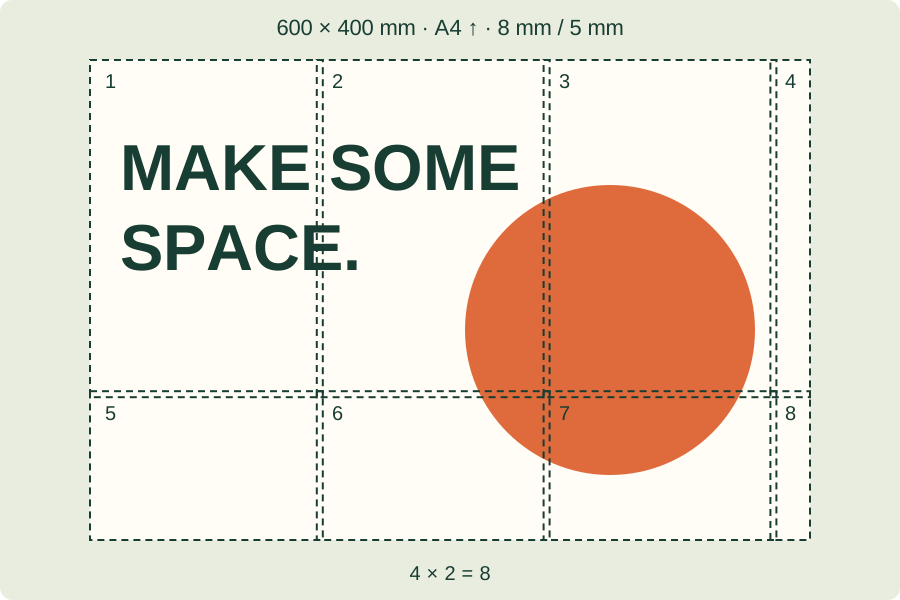
To generate a document with a 50 mm check line, create a tiled poster PDF and keep its chosen paper format.
Make a one-page test
Print page 1 first and measure its 50 mm check line with a physical ruler: it must measure 5 cm. A measurement of 4.75 cm means about 95% scaling. Check the labels and image area as well. If the length is wrong, recheck the PDF viewer and printer driver settings, then print that sheet again. An on-screen preview cannot prove the physical scale of the paper output.
If the result is too small
Recheck both the PDF application's scale setting and the printer driver's settings. Look for an additional scaling or multiple-pages-per-sheet option. Keep the poster single-sided and use one PDF page per paper sheet. If image content is clipped at the edge, return to the poster maker and allow a suitable margin instead of silently shrinking the completed layout. Export a new PDF after changing those settings.
After checking the scale on paper, assemble the poster sheets with the correct overlap.
References & further reading
Updated: